Georgia · PDF to Excel, CSV, QBO, OFX, Xero
Convert Bank of Georgia statements to Excel, CSV or QBO
VerifiedTested on 5 real statements and synthetic replicas
Bank of Georgia puts each currency in its own column. The converter splits the rows by currency and checks every one against its start and end balance. Download Excel, CSV, QBO, OFX, Xero CSV or QuickBooks Online CSV; the PDF never leaves your device. Status: Verified, tested on 5 real Bank of Georgia statements and on synthetic layout replicas.
Bank of Georgia statement at a glance
- Country
- Georgia
- Statement columns
- Date · Description · Amount per currency
- Date format
- DD/MM/YYYY
- Number format
- 1,234.56
- Currency
- Read from the statement, one section per currency
- Balance check
- Opening balance + rows = closing balance
- Export formats
- Excel (XLSX) · CSV · QBO (Web Connect) · OFX · Xero CSV · QuickBooks Online CSV
- CSV from the bank
- Not offered
Bank of Georgia statement layout
What the statement shows
- In the statements we have seen, the statement title is Account Statement, followed by labels for the account name, IBAN, start date and statement period (DD/MM/YYYY - DD/MM/YYYY).
- Amounts are listed in one column per currency (GEL, USD, EUR, GBP); each transaction has its amount in exactly one of these columns.
- Debits carry a minus sign and credits are printed without a sign, so the sign comes from the figure itself.
- Start Balance and End Balance rows give one figure per currency; there is no running balance after each transaction.
- Dates are DD/MM/YYYY and amounts use a dot for decimals and a comma for thousands (1,234.56).
How the converter reads it
A Bank of Georgia personal statement is titled Account Statement. Under the title come the account name, the IBAN, a start date and the statement period written as DD/MM/YYYY - DD/MM/YYYY. These header lines are what the converter uses to name the account and to anchor the dates in the export.
More detail
- Credit turnover and Debit turnover rows with one total per currency close the table.
- Business accounts use a different export: a landscape layout stored on a rotated page, with DD.MM.YYYY dates and separate debit and credit columns.
The unusual part of this layout is how money is laid out across the page. Instead of one amount column, the statement has a column for each currency: GEL, USD, EUR and GBP. Every transaction has its figure in exactly one of those columns, and the others stay empty for that row. A payment from a lari account shows up under GEL; a transfer from a dollar balance shows up under USD. The converter reads which column holds the number and treats that as the currency of the row, then groups rows by currency. The result is one sheet or section per currency, so a dollar purchase and a lari salary are never added together.
Signs are carried by the figures themselves. A debit has a minus sign in front of it, and a credit is printed with no sign at all. Numbers use a dot for decimals and a comma for thousands, as in 1,234.56. Dates follow the day, month, year order with slashes. The export writes ISO dates, which spreadsheets and accounting tools read without guessing whether 03/04 means March or April.
There is no running balance after each transaction. What the statement gives instead is a Start Balance row and an End Balance row, each with one figure per currency, and, at the foot of the table, Credit turnover and Debit turnover rows with a total per currency. Those four lines are enough for a solid check. For each currency, the start balance plus all credits minus all debits should equal the end balance, and the credit and debit sums should match the turnover rows. If one currency does not reconcile, the converter tells you which one, so you know where to look.
Business accounts are different. Their export uses a landscape layout stored on a rotated page, with DD.MM.YYYY dates and separate debit and credit columns. Business statements were not part of the real-statement check, so look at the balance result closely on a business file. Business clients can also pull statements through the BOnline statement API, which Bank of Georgia documents publicly.
Descriptions on Bank of Georgia statements may be in Georgian. They are kept as Unicode text in the export, and dates, amounts and balances are read the same way whatever language the description is in. The synthetic test files used so far contain Latin text only, and currency columns beyond GEL, USD, EUR and GBP have not been tested.
The layout was worked out from structure-only skeletons of real statements, where every name and figure was masked, and from synthetic replicas. Five real personal statements were then converted and passed the balance check, which is why Bank of Georgia is marked Verified. A layout change on the bank's side could still break a file, so let the balance check guide you each time. Scanned or photographed statements cannot be read.
Checked against real statements offline; they were never uploaded. Linked notes come from the bank's own pages.
How to download your statement from Bank of Georgia
On the website
- Sign in to Bank of Georgia internet bank and open the account you need.
- Open the transaction history or statement view, choose the period and download the statement as PDF (exact menu names are not documented on the public pages; check them after signing in).
In the mobile app
- The Bank of Georgia mobile app shows the same accounts and transactions; look for a statement option in the account menu (not described on the public pages).
Steps checked: November 1, 2026. No native CSV export is documented. The public pages checked do not describe a CSV export for personal accounts. Business clients can use the BOnline statement API.
Sample preview and test results
Synthetic sample, not a real statement. Open the synthetic sample PDF
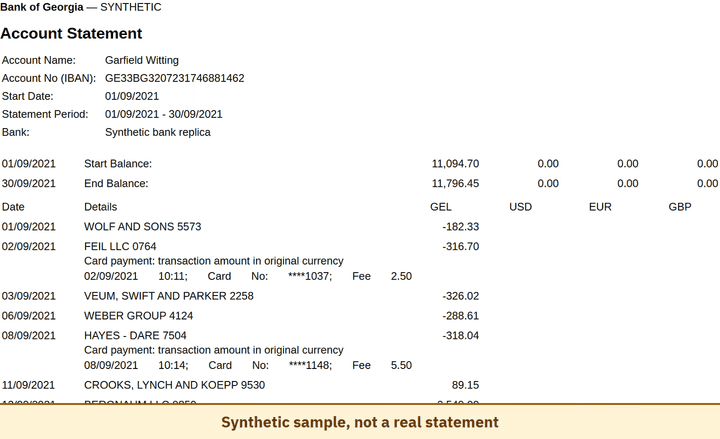
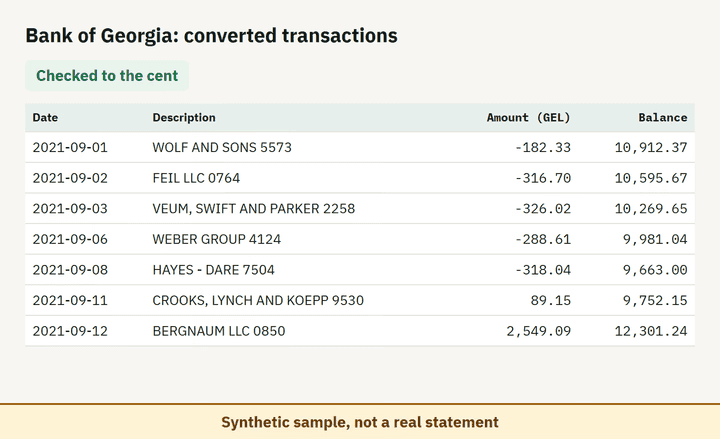
- Balance check passed on 100% of 8 perturbed synthetic files.
- Real statements tested: 5, checked offline. They were never uploaded.
Which file to download from a Bank of Georgia statement
| Format | Imports into | Status |
|---|---|---|
| Excel (XLSX) | Microsoft Excel, Google Sheets, LibreOffice Calc, Apple Numbers | Available |
| CSV | Excel, Google Sheets, databases and scripts, most accounting tools that accept a custom CSV | Available |
| QBO (Web Connect) | QuickBooks Online (bank upload) | Available, follows the Intuit Web Connect specification |
| OFX | Xero, GnuCash, Moneydance, Banktivity, MoneyMoney, QuickBooks Online (bank upload) | Available, follows the OFX 2.2 specification |
| Xero CSV | Xero (Import a statement) | Available, follows the Xero CSV template |
| QuickBooks Online CSV | QuickBooks Online (Upload transactions) | Available, follows the QuickBooks Online 3-column layout |
Known limitations
- Verified on five real personal statements, which passed the balance check. Other account types or a newer layout may still differ.
- Business-account statements have a different layout and were not part of the real-statement check, so look at the balance result closely.
- Currency columns other than GEL, USD, EUR and GBP are untested. Georgian text in descriptions is read as Unicode, but the synthetic test files use Latin text only.
- Scanned or photographed statements are not supported.
Bank of Georgia statement FAQ
Can I convert a Bank of Georgia PDF statement to Excel?
Yes. Drop the PDF into the converter on this page; it reads the Date, Details and currency columns and checks the result against the start and end balances.
My account has several currencies. What happens?
Each currency becomes its own sheet or section, with its own start balance, end balance and balance check.
Why is there no balance column in the result?
The Bank of Georgia statement does not print a running balance. The converter checks the start balance plus all amounts against the end balance instead.
Does the converter read Georgian descriptions?
Yes, descriptions are kept as Unicode text. Amounts, dates and balances do not depend on the language of the description.
Can I import the result into QuickBooks or Xero?
Yes. Export to QBO, OFX or the Xero CSV layout after the balance check passes.
Can I just use ChatGPT to convert my Bank of Georgia statement?
For a short statement, if you check the totals yourself. Here every Bank of Georgia row is checked against the statement balances for you. Converter or ChatGPT? See our comparison.
Test status
Last tested: November 2, 2026