Georgia · PDF to Excel, CSV, QBO, OFX, Xero
Convert Credo Bank statements to Excel, CSV or QBO
VerifiedTested on 4 real statements and synthetic replicas
Credo statements open with a cover page per account and center text in every cell. The converter rebuilds wrapped descriptions and checks the running balance. Download Excel, CSV, QBO, OFX, Xero CSV or QuickBooks Online CSV; the PDF never leaves your device. Status: Verified, tested on 4 real Credo Bank statements and on synthetic layout replicas.
Credo Bank statement at a glance
- Country
- Georgia
- Statement columns
- Date · Description · Balance · Amount per currency
- Date format
- DD.MM.YYYY
- Number format
- 1,234.56
- Currency
- Read from the statement, one section per currency
- Balance check
- Running balance on every row, then the closing balance
- Export formats
- Excel (XLSX) · CSV · QBO (Web Connect) · OFX · Xero CSV · QuickBooks Online CSV
- CSV from the bank
- Not offered
Credo Bank statement layout
What the statement shows
- In the statements we have seen, the first page of each account is a cover with the account holder, statement period (DD.MM.YYYY - DD.MM.YYYY), account number (IBAN), account currency, opening balance, closing balance and income and expense totals.
- Each cover value sits on a local-language label line, and the English label is printed on the line below it.
- The transaction table has the columns Date, Operation, Turnover (Dr), Turnover (Cr), Balance, Description, Beneficiary Name and Beneficiary Account; the header repeats on every page.
- Debits and credits are separate columns, so amounts carry no minus sign; a running Balance is printed on every row.
- Dates are DD.MM.YYYY and amounts use a dot for decimals and a comma for thousands (1,234.56).
How the converter reads it
Credo Bank statements start each account with a cover page. It lists the account holder, the statement period in DD.MM.YYYY - DD.MM.YYYY form, the IBAN, the account currency, the opening and closing balance, and the totals of income and expense. Each value sits on a line with a Georgian label, and the English label is printed on the line underneath. The converter reads the cover first, because it supplies the two balances and the currency that everything after it is checked against.
More detail
- Cells are centered and vertically middle, so a long description wraps onto lines above and below the dated line.
- Pages are landscape A4 and each currency account has its own statement with its own cover page.
If you hold accounts in more than one currency, each one has its own statement with its own cover. A lari account and a dollar account are therefore separate from the start, and the converter keeps them as separate sections with separate checks.
The transaction table is wide. Pages are landscape A4, and the columns are Date, Operation, Turnover (Dr), Turnover (Cr), Balance, Description, Beneficiary Name and Beneficiary Account. The header row repeats on every page. Debits go in Turnover (Dr) and credits in Turnover (Cr), so the figures have no minus sign and the column decides the direction. A running balance is printed on every row, which means each line can be tested against the line above it as well as against the closing figure on the cover.
Dates use dots, day first. Amounts use a dot for decimals and a comma for thousands, as in 1,234.56. The export turns the dates into ISO format.
One layout detail causes most of the trouble with copy and paste. Credo centers the text in each cell, both across and up and down. A long description that wraps onto two or three lines grows in both directions from the middle, so part of it can sit above the line that holds the date and amount. If you select the text in a PDF viewer and paste it into a spreadsheet, those lines tend to come out shuffled. The converter attaches each loose line to the nearest dated row on the same page, which rebuilds the description in one cell.
Not every column makes it into the export. Beneficiary Name and Beneficiary Account are not exported in this version; you get the date, the description, the debit or credit amount and the balance. Georgian text in descriptions is kept as Unicode, though the synthetic test files contain Latin text only.
The layout comes from structure-only skeletons of real statements, with names and numbers masked, and from synthetic replicas. Four real statements were then converted and each passed the balance check, so Credo is marked Verified. The header words above were read from the masked skeletons. If your statement uses different wording, the converter falls back to the rules it uses for unlisted banks, and the balance check shows the result. Scanned statements are not supported.
Business clients can get statements in several formats from the Credo business mobile bank. For personal accounts, the public pages do not describe a CSV download, so the PDF is usually what you have to work with.
Checked against real statements offline; they were never uploaded. Linked notes come from the bank's own pages.
How to download your statement from Credo Bank
On the website
- Sign in to the Credo Bank internet bank and open the account you need.
- Open the transaction history or statement view, choose the period and download the statement as PDF (exact menu names are not documented on the public pages; check them after signing in).
In the mobile app
- The Credo mobile bank shows the same accounts and transactions; look for a statement option in the account menu (not described on the public pages).
Steps checked: November 1, 2026. No native CSV export is documented. The public pages checked do not describe a CSV export for personal accounts. Business clients can get statements in several formats from the business mobile bank.
Sample preview and test results
Synthetic sample, not a real statement. Open the synthetic sample PDF
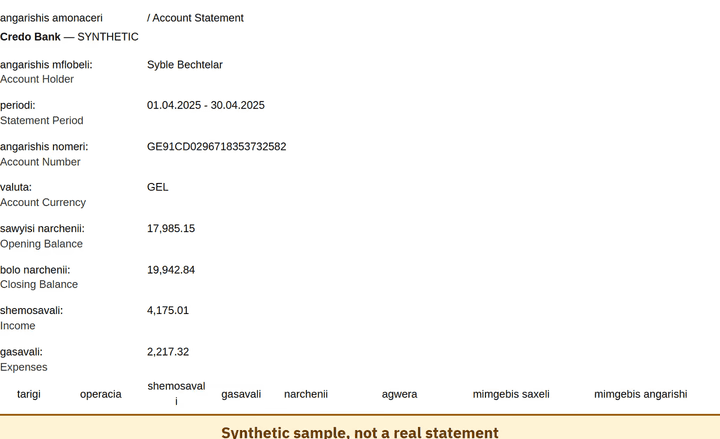
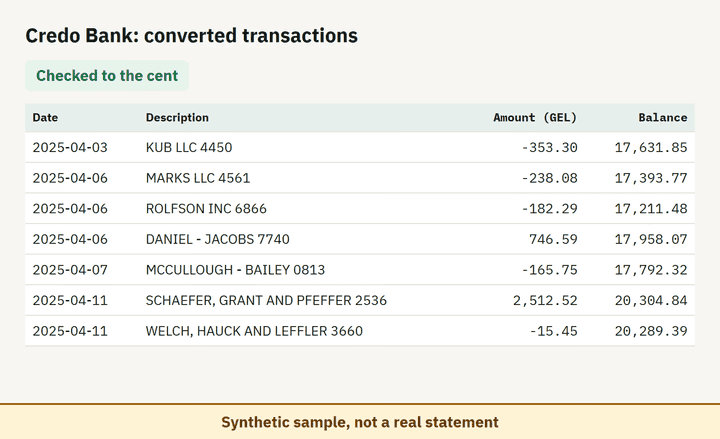
- Balance check passed on 100% of 8 perturbed synthetic files.
- Real statements tested: 4, checked offline. They were never uploaded.
Which file to download from a Credo Bank statement
| Format | Imports into | Status |
|---|---|---|
| Excel (XLSX) | Microsoft Excel, Google Sheets, LibreOffice Calc, Apple Numbers | Available |
| CSV | Excel, Google Sheets, databases and scripts, most accounting tools that accept a custom CSV | Available |
| QBO (Web Connect) | QuickBooks Online (bank upload) | Available, follows the Intuit Web Connect specification |
| OFX | Xero, GnuCash, Moneydance, Banktivity, MoneyMoney, QuickBooks Online (bank upload) | Available, follows the OFX 2.2 specification |
| Xero CSV | Xero (Import a statement) | Available, follows the Xero CSV template |
| QuickBooks Online CSV | QuickBooks Online (Upload transactions) | Available, follows the QuickBooks Online 3-column layout |
Known limitations
- Verified on four real statements: each passed the balance check against its cover page. Other account types may use a different layout.
- Header wording (Operation, Turnover (Dr) and (Cr), Beneficiary...) was read from masked copies of real statements; if a statement uses other words, the converter falls back to the rules it uses for unlisted banks, and the balance check shows the result.
- Beneficiary name and account columns are not exported, only the description. Georgian text in descriptions is read as Unicode, but the synthetic test files use Latin text only.
- Scanned or photographed statements are not supported.
Credo Bank statement FAQ
Can I convert a Credo Bank PDF statement to Excel?
Yes. Drop the PDF into the converter on this page; it reads the Turnover (Dr), Turnover (Cr) and Balance columns and checks the result against the opening and closing balances on the cover page.
How does the converter know the currency?
It reads the Account Currency value on the cover page. An account in a second currency has its own cover page and becomes its own section.
Why are some description lines above the date?
Credo centers each cell vertically, so a wrapped description can start above the dated line. The converter attaches each line to the nearest dated row on the same page.
Does the converter read Georgian descriptions?
Yes, descriptions are kept as Unicode text. Amounts, dates and balances do not depend on the language of the description.
Can I import the result into QuickBooks or Xero?
Yes. Export to QBO, OFX or the Xero CSV layout after the balance check passes.
Can I just use ChatGPT to convert my Credo Bank statement?
For a short statement, if you check the totals yourself. Here every Credo Bank row is checked against the statement balances for you. Converter or ChatGPT? See our comparison.
Test status
Last tested: November 2, 2026