Neobanks · PDF to Excel, CSV, QBO, OFX, Xero
Convert Wise statements to Excel, CSV or QBO
BetaBeta: built from the bank's published layout
Wise statements come in one block per currency. The converter keeps each currency separate and checks every row against the running balance. Download Excel, CSV, QBO, OFX, Xero CSV or QuickBooks Online CSV; the PDF never leaves your device. Beta: tested on synthetic replicas of the Wise layout, not yet on real statements. Wrong row? Click "This row is wrong".
Wise statement at a glance
- Country
- Neobanks
- Statement columns
- Date · Description · Amount · Credit · Debit · Balance
- Date format
- D MMM YYYY
- Number format
- 1,234.56
- Currency
- Read from the statement, one section per currency
- Balance check
- Running balance on every row, then the closing balance
- Export formats
- Excel (XLSX) · CSV · QBO (Web Connect) · OFX · Xero CSV · QuickBooks Online CSV
- CSV from the bank
- Available
Wise statement layout
What the statement shows
- The PDF statement header shows the account holder, account and routing identifiers, the statement period with its time zone (GMT) and the generation date.
- As described in public help pages, each transaction entry carries a description, an amount, the resulting balance, a date and a transfer reference.
- A statement is produced per currency balance; a multi-currency export means one statement (one block) per currency, each with its own balance.
- When creating a statement you can tick a box to show fees on separate lines.
- A statement covers at most 365 days; longer ranges need several exports.
How the converter reads it
A Wise statement is built per currency balance. If you hold several currencies in one Wise account, an export covering all of them is really a set of statements, one block per currency, each with its own balance. The converter treats each block as a separate account with its own opening balance, closing balance and check, and it never converts amounts between currencies.
More detail
- Besides PDF, statements can be exported as CSV, XLSX, CAMT.053, MT940 and QIF, with JSON available through the API.
The header of the PDF names the account holder, gives the account and routing identifiers, and states the statement period together with its time zone, which is GMT, plus the date the statement was generated. The time zone is worth knowing if you reconcile against a ledger kept in another zone: a payment made late in the evening in New York can fall on the next calendar day in GMT.
Each transaction entry shows a description, an amount, the balance after it, a date and a transfer reference. The converter reads the amount as a single signed figure, with money out negative and money in positive, and dates written as a day, the month name and the year, such as 4 March 2025. The running balance lets every row be checked against the one above it.
Wise offers two PDF layouts. In one, every transaction is a single line. In the other, fees appear on separate lines. Only the first layout is covered for now. If your statement shows fees on their own lines, choose the one-line layout when you create the statement, or check the fee rows in the export carefully.
There is also a limit on length. A single statement can cover at most 365 days, so a two-year history means at least two statements per currency. Convert them one at a time and combine the results in your spreadsheet.
To create a statement on the web, open Statements and reports, choose Create a statement, and select the currency balance, the period, the language and the file format. In the app, open the balance you need, find the statements option, choose the period and pick PDF, CSV or XLSX. Either way, repeat it for each currency.
That list of formats is the main thing to know before converting anything. Wise exports CSV, XLSX, CAMT.053, MT940 and QIF itself, and offers JSON through its API. If you can still log in and the period is within reach, a native export is the simplest route. The converter is for the PDFs you already have: statements attached to a visa or rental application, files from a closed account, or a folder of PDFs a client sent instead of spreadsheets.
Wise is marked Beta on this site. The test replica was built from public descriptions of the layout, not from a real Wise statement, so it stays Beta until real files confirm it. Scanned or photographed statements are not supported.
Once the balance check passes, export Excel or CSV, or QBO or the Xero CSV layout. Keep one file per currency and import each into the matching bank account in your books.
Sources: the bank's help pages and public descriptions of sample statements.
How to download your statement from Wise
On the website
- Open Statements and reports.
- Choose Create a statement.
- Select the currency balance, the period (up to 365 days), the language and the file format.
- Download the file; repeat for each currency.
In the mobile app
- Open the balance (currency) you need.
- Open the statements option and choose the period.
- Pick PDF, CSV or XLSX (the app offers these three) and download or share the file.
Steps checked: November 1, 2026. The bank also offers a CSV export. Wise exports CSV (and XLSX, CAMT.053, MT940, QIF) itself, one file per currency. Use the PDF converter when only the PDF is available.
Sample preview and test results
Synthetic sample, not a real statement. Open the synthetic sample PDF
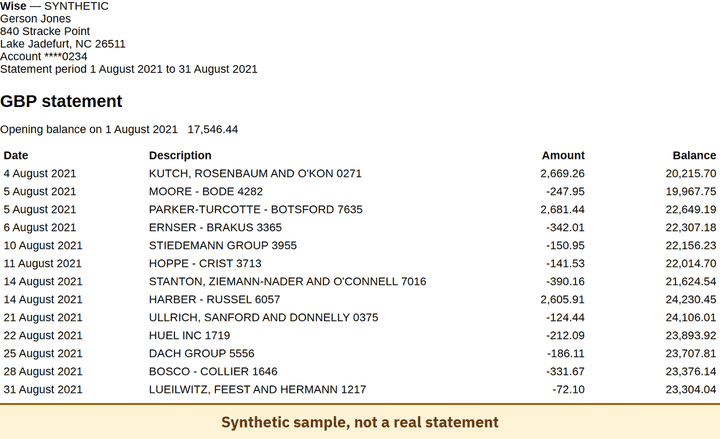
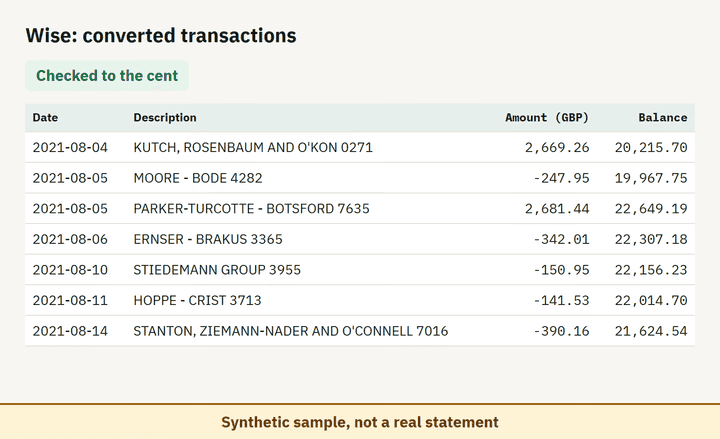
- Balance check passed on 100% of 8 perturbed synthetic files.
Which file to download from a Wise statement
| Format | Imports into | Status |
|---|---|---|
| Excel (XLSX) | Microsoft Excel, Google Sheets, LibreOffice Calc, Apple Numbers | Available |
| CSV | Excel, Google Sheets, databases and scripts, most accounting tools that accept a custom CSV | Available |
| QBO (Web Connect) | QuickBooks Online (bank upload) | Available, follows the Intuit Web Connect specification |
| OFX | Xero, GnuCash, Moneydance, Banktivity, MoneyMoney, QuickBooks Online (bank upload) | Available, follows the OFX 2.2 specification |
| Xero CSV | Xero (Import a statement) | Available, follows the Xero CSV template |
| QuickBooks Online CSV | QuickBooks Online (Upload transactions) | Available, follows the QuickBooks Online 3-column layout |
Known limitations
- Beta: tested on synthetic replicas built from public Wise layout information, not yet on real statements. If the result looks wrong, mark the row with 'This row is wrong' or use 'Send page layout', which sends the masked layout only and none of your figures.
- Statement dates are read as 'D MMMM YYYY' and amounts as one signed Amount column; layouts that split fees onto separate lines are not covered yet.
- Each currency block is read on its own; there is no conversion between currencies.
Wise statement FAQ
Can I convert a Wise PDF statement to Excel or CSV?
Yes. Drop the PDF into the converter on this page and it reads each currency block, checks the opening and closing balance, and exports XLSX or CSV. Wise can also export CSV and XLSX itself.
Why does my Wise statement have a separate section for each currency?
Wise statements are produced per currency balance, so a multi-currency account gives one block or one file per currency. The converter keeps each currency as its own sheet section.
How far back can I download a Wise statement?
Each statement can cover up to 365 days. For a longer history, download several statements and convert them one by one.
Which format imports best into QuickBooks or Xero?
Convert the statement to QBO or the Xero CSV format. Keep one file per currency and import each into the matching bank account.
Can I just use ChatGPT to convert my Wise statement?
For a short statement, if you check the totals yourself. Here every Wise row is checked against the statement balances for you. Converter or ChatGPT? See our comparison.
Test status
Last tested: November 2, 2026